Your Ad Here

Thursday, August 23, 2007

Advanced Google Searching (Google Hacking)

Google is a powerful search engine that hackers often use it to find passwords, and confidential or sensitive documents that companies do not realize are even available to the public. Most computer people use Google, but do not know how to use all of its search parameters. The term "google hacking" is a method used by unscrupulous people to not only uncovers sensitive data, but also to expose web server vulnerabilities. Here I list several Google search parameters and examples.


The syntax "filetype:" instructs Google to search for files on the Internet with specific extensions. For example: filetype:doc site:gov confidential Google will produce all the word documents, from all the gov domains that may contain the word confidential. Another example is, filetype:pdf site:com access-list. You may use any domain type, (com, gov, edu…)

The syntax "cache:" will display the version of the web page that Google has in its cache. For Example: "cache:www.microsoft.com" will display Google's cache of the Microsoft homepage.

The syntax "intext" searches for the words within a specific website and ignores the URLs and page titles. For example: intext:confidential will return only links to those web pages that has the search keyword " confidential " in its webpage.


The syntax "intitle:" instructs Google to search for pages that contain the words behind intitle: For example intitle:index of master.passwd will return pages within Unix or Linux where the master.passwd files are. /etc/passwd "allintitle:" will produce a list of all words in the title. Google will ignore the slashes.

intitle: examples:

intitle:"Index of" .sh_history

intitle:"Index of" .bash_history

intitle:"index of" passwd

intitle:"index of" people.lst

intitle:"index of" pwd.db

intitle:"index of" etc/shadow

intitle:"index of" spwd

intitle:"index of" master.passwd

intitle:"index of" htpasswd

intitle:"index of" members OR accounts

intitle:"index of" user_carts OR user_cart

allintitle: sensitive filetype:doc

allintitle: restricted filetype :mail

allintitle: restricted filetype:doc site:gov

The syntax "inurl:" instructs Google to search for pages that contain specific words or characters included in the URL such as this inurl:windows. The results of this query will produce such pages that have the word "windows" in it. allinurl: will produces the results of URLs with all of the specified words in its query. allinurl:windows/cracks.

inurl: examples:

inurl:admin filetype:txt
inurl:admin filetype:db
inurl:admin filetype:cfg
inurl:mysql filetype:cfg
inurl:passwd filetype:txt
inurl:iisadmin
inurl:auth_user_file.txt
inurl:orders.txt
inurl:"wwwroot/*."
inurl:adpassword.txt
inurl:webeditor.php
inurl:file_upload.php
inurl:gov filetype:xls "restricted"


The syntax "link:" will produce a list of webpages that have a link to a specified webpage. For example: link:www.thenetworkadministrator.com will create a Google list of websites with links to www.thenetworkadministrator.com.

The Google syntax "phonebook" searches for U.S. street addresses and phone number information. For Example: "phonebook:James+FL" will list down all names of person having "James" in their names and located in "Florida (FL)".
The syntax related: lists web pages that are "similar" to a specific web page. For Example: related:www.thenetworkadministrator.com will list web pages that are similar to that of TheNetworkAdministrator's homepage.


The syntax site: instructs Google to search for keywords in a particular site or domain. For example: exchange site:microsoft.com will search for the keywords "exchange" in those web pages in all the links of the domain microsoft.com.


Related Posts:


LimeWire Hackers


Extreme Hacking Videos


Wirless Network Attackers


Hacking Login Windows Screen

Tuesday, August 14, 2007

Hacking Videos

.:: reaL hackinG videoS ::.


Hacking Internet Security Cameras


Extortion Spyware


Related Posts:


LimeWire Hackers


Wirless Network Attackers

Hacking Login Windows Screen

Advanced Google Search Keyword Hacking

Wireless Network Attackers

.:: Wireless Network Attackers ::.

Wireless hacking, or "Wardriving" is when someone from outside your home accesses your wireless network. In most case it is because the victim doesn't have security enabled on their wireless access point. The dangers of having a non-secure wireless access-point are: Spammers can send junk mail from your home, hackers and criminals can hack remote locations that are tracked back to you, your confidential information is exposed to anyone that parks outside your home with a laptop. You may also suffer some liability because attacks were launched from your home by the bad guys. Here is a video of Joe and I as we drove around the local new station, showed them hundreds of open wireless networks in minutes


Listed below are 8 Tips to

Top 8 Tips for Wireless Home Network Security

1) Change Default Administrator Passwords (and Usernames)

Changing the default password is important because everyone that purchases the same Wireless access device, knows your password.

2) Turn on (Compatible) WPA / WEP Encryption


By default, your Wireless device comes without the encryption enables. WPA / WEP are security programs that forced your computer to provide an encrypted password before you are allowed access to the wireless access point.

3) Change the Default SSID

SSID is the network name of your wireless network; most people leave the default name, such as, Linksys or NetGear. By changing the name, intruders have a more difficult time identifying your system and use known vulnerabilities. (And of course, use the unchanged default password.) One mistake people make is naming their home network their family name and or address. When cruising a neighborhood of wireless devices, its always scary to see Smithfamily201Elm.

4) Disable SSID Broadcast

In Wi-Fi networking, the access point or router typically broadcasts the network name (SSID) over the air at regular intervals. This feature was designed for businesses and mobile hotspots where Wi-Fi clients may come and go. In the home, this feature is unnecessary, and it increases the likelihood an unwelcome neighbor or hacker will try to log in to your home network.

5) Assign Static IP Addresses to Devices

Most home networkers gravitate toward using dynamic IP addresses. This means that the IP Address, (the IP Address is needed to participate on a network.) is typically assigned automatically. A dynamic IP address on an unsecure system can also supply a hacker with a IP Address.

6) Enable MAC Address Filtering

Each piece of Wi-Fi gear possesses a unique identifier called the "physical address" or "MAC address." Access points and routers keep track of the MAC addresses of all devices that connect to them. Many such products offer the owner an option to key in the MAC addresses of their home equipment that restricts the network to only allow connections from those devices. Do this, but also know that the feature is not so powerful as it may seem. Hacker software programs can fake MAC addresses easily.

7) Turn Off the Network During Extended Periods of Non-Use

The ultimate in security measures for any wireless network is to shut down, or turn office your wireless access point when you are not using. You are the most vulnerable at work or asleep, and mischief minded people know it.

8) Position the Router or Access Point Safely

Wi-Fi signals normally reach to the exterior of a home. A small amount of "leakage" outdoors is not a problem, but the further this signal reaches, the easier it is for others to detect and exploit. Wi-Fi signals often reach across streets and through neighboring homes. When installing a wireless home network, the position of the access point or router determines it's reach. Try to position these devices near the center of the home rather than near windows to minimize this leakage.


Related Posts:


LimeWire Hackers


Extreme Hacking Videos


Hacking Login Windows Screen

Advanced Google Search Keyword Hacking

LimeWire Hackers

.:: LimeWire Hackers ::.

Limewire may be a convenient tool for downloading shared music and files, but it can also reveal your personal files.

If you know how to search Limewire, you will find thousands, even hundreds of thousands of personal and confidential documents, unknowingly shared on the Internet. Joe showed us tax returns, scanned copies of driver licenses, personal, and sexy pictures, and even banking account information...all for the taking by Internet "bad guys".

Listed below are some security tips to help protect you from having your personal data exposed in the Internet.

Click here to download the Video

Limewire Tip for Safe File Sharing

Limewire is a peer-to-peer file sharing program that lets you search and share file with other people on the Internet. Limewire is free to download and free to use. There are several problems with using a file sharing program like Limewire. Here we will show you how to keep from exposing your computer and your personal files from viruses and identity thieves.

What not to share


When you install Limewire, the program asks you if you want to search you computer for media files to share. This is where the first security problem can arise. Limewire will automatically search your hard drive for any media files then ask you if you want to share the folder those files are stored in. Unfortunately this search almost always asks the user if they want to share the windows system folder. If you were to share your windows system folder you will be sharing all of your computer's primary files to the internet and in worse case sinerios your password files will be exposed to these file sharing programs. The next folder to avoid sharing is My Documents. Let?s see what else gets saved in My Documents. Word documents, Excel spreadsheets, digital photos, your tax documents, scanned documents. Almost every program saves in My Documents by default. Then there are the people who find it easier to share their entire c:\ drive rather than go through the bother of finding the files they wish to share. These make everything on your computer accessible to the internet. So what should you do to share files? The safest way to share files is to create a directory set the directory's permission to read/write only. Then tell Limewire that is the only directory that you wish to share from.

What not to open


Anything, Do not open any files that you download from a file sharing network without scanning the file for viruses first. Viruses can look like any type of file and you are downloading these files from strangers. Virus writers and spammers will flood sharing networks with their malicious files. A favorite technique of virus writer is to name viruses similar to the most popular downloads.

Limewire is not a free iTunes


Downloading copyrighted material can get you into a lot of trouble. So how can you tell what material will not get you into trouble. Limewire will let you know when you are downloading unlicensed content. If it is unlicensed then it can get you into trouble. A good rule of thumb is if you have seen it in the movie theater or the music store then you probably could get in trouble for downloading.

Visit Joe's website at www.CRCIT.net for more Tips.

http://www.crcit.net/limewire.html


Related Posts:


Extreme Hacking Videos

Wirless Network Attackers


Hacking Login Windows Screen

Advanced Google Search Keyword Hacking

Sunday, August 12, 2007

802.11n wireless LAN Test's Results

802.11n wireless LAN tests show 'unbelievable' results at state college


The IT staff at Morrisville State College, where the first large-scale Draft 802.11n wireless LAN is being designed, ays the beta gear exceeds expectations. The school last week plugged in the first 10 production units of Meru Networks access points.

One issue still facing the college, however, is when and how to upgrade the electrical system for the high-throughput devices, 900 of which will eventually be deployed across campus

The New York college, near the state’s rural center, is in the final stage of building a pervasive campuswide WLAN based initially on Meru Networks’ existing 802.11a/b/g access points. Those will start to be replaced this month and next with the newest Meru access points, which have a chipset that supports 11n. The first ten of these were shipped to the college last week.

With 11n, users can expect to see throughput of 100M to 300Mbps, depending on how the access point and client adapter are configured. That compares with 20M to 25Mbps today for 11a and 11g WLANs. In addition, users can expect to see high throughput sustained over longer distances from 11n access points. In tests that began in June, Morrisville network administrators are finding that 11n is delivering on its promise.


“Some of the statistics [from the tests] were just unbelievable,” says Jean Boland, vice president of technology services for the college, in Morrisville, N.Y. “[In general,] speeds were five times that of 11g.” Often, they were higher: According to Boland, a 50MB file uploaded from a laptop to a network drive took 3 minutes, 51 seconds with an 11g connection, but 26 seconds with an 11n connection -- nearly nine times faster.


An 11n chipset built into a new notebook PC transferred the same file in 8 seconds. That specific result was so startling, the testers thought they had made a mistake and ran the test again, with the same result.


The tests use Meru’s beta 11n access points. The clients are existing laptops fitted with a 2.4GHz 11n Linksys USB adapter, and new Lenovo T61 Thinkpad notebook PCs with a built-in Atheros Communications 11n chipset that can run on the 2.4GHz and 5GHz frequencies.

WLAN distance differences


Morrisville Network Administrator Matt Barber runs the tests in dorms and student rooms, and near active areas where other access points and equipment operate. His team sets up the access point and clients, and each time runs through an identical set of data transfers, using different kinds of files, at specified distances from the access point, so the results can be compared.


As with 11a/b/g, the 11n connection speed drops as distance to the access point increases -- but not as much. “We’re losing a lot less of the speed as we move further away, compared to the effect we see in 11g,” Barber says.


In addition, the 11n data rate decreases in much smaller increments. The 802.11 standard specifies that data rates decrease by set amounts at certain distances, like steps. “11n has similar behavior, but it has many more steps,” Barber says. When clients are very close to the access point, the testers routinely record a rate of 280M to 300Mbps. Moving further away in stages causes the rate to drop to 240M to 279Mbps. “In some places, this is faster than if I plugged into the wall [Ethernet jack],” Barber says.


For Morrisville, raw distance is less important than penetration -- how well 11n can get through the cinder block and steel that are found in many of the campus’ 45-odd buildings. Again, 11n is paying off. “We’re seeing this [penetration] more than we expected,” Barber says.


“You might see with your laptop a dozen [11n] access points, though only two to three might be visible to your eyes,” Boland says The greater rate at greater distance means that Morrisville may be able to deploy slightly fewer 11n access points when the networl is fully converted to 11n later this fall. The main benefit, however, Boland says, is that the dense packing of 11n access points and the greater reach of 11n clients means that users will be more likely to find and keep a high-throughput connection.


“We’re designing the net so that we have lots of access points,” Boland says. “As you move further, another access point will be in range to keep that [data] rate up high.”


Tests will continue. The next priority is to find 5GHz 11n client adapters, either cards or USB devices.
So far, site surveys have been done in most campus buildings -- and conventional Meru 11a/b/g access points deployed in about 30 -- by IBM, which is the network integrator for the project. The remaining buildings will be done in August, so that returning students will be able to access the upgraded campus WLAN.

Thursday, August 9, 2007

A beginner's guide to BitTorrent

A beginner's guide to BitTorrent


Despite the fact that BitTorrent has been around for a good 6 years now, the lightning fast file sharing protocol hasn't completely taken off in the mainstream. Since we post a decent amount about BitTorrent around here, we figured it was just time we put out a beginner's guide to BitTorrent. This is the guide you can send to your friend next time he gets that glassy look in his eyes when you mention BitTorrent and how quick and easy it makes downloading albums educational, public domain videos and other large files.
Without going into too much detail, here's a crash course in the file sharing protocol that is BitTorrent (feel free to skip to the
How to find and download a file with BitTorrent section if you're not all that interested in the details).

What is it?

BitTorrent is not a program. It's a method of downloading files using a distributed peer-to-peer file sharing system. The programs that you use to download files via the BitTorrent protocol are called BitTorrent clients.
BitTorrent is not like Limewire/Kazaa/Napster/other P2P programs you've used in the past. This is often the biggest source of confusion for people new to BitTorrent. It's not difficult to use, it's just different. As soon as you forget about your old file-sharing program (and you will once you start using BT), the easier it will be to start using BitTorrent.


How does it work

What makes the BitTorrent protocol unique is that it distributes the sharing of files across all users who have downloaded or are in the process of downloading a file. Because BitTorrent breaks up and distributes files in hundreds of small chunks, you don't even need to have downloaded the whole file before you start sharing. As soon as you have even a piece of the file, you can start sharing that piece with other users. That's what makes BitTorrent so fast; your BitTorrent client starts sharing as soon as it downloads one chunk of the file (instead of waiting until the entire download has been completed).

In order to download a file like the educational public domain video we mentioned above, you have to find and download a torrent file (which uses the .torrent file extension) and then open it with your BitTorrent client. The torrent file does not contain your files. Instead, it contains information which tells your BitTorrent client where it can find peers who are also sharing and downloading the file.

How to find and download a file with BitTorrent

Now that you've got a better idea of the terminology and process behind BitTorrent, let's jump right into using BitTorrent.
First you need to download a BitTorrent client (the program that manages your BitTorrent downloads). I'd recommend:


.uTorrent for Windows
.Transmission for Mac
.Azureus or KTorrent for Linux (Actually, Azureus is cross platform, meaning it will work on Windows and Mac, but on those platforms it's not nearly as lightweight as the alternatives listed above.)

Search for a good torrent. There are a handful of really good web sites for downloading torrents (that's right, you search for torrents on the internet). The sites I'd recommend (in no particular order) are:

Mininova
The Pirate Bay
isoHunt
TorrentSpy
btjunkie
Demonoid (Demonoid is sort of a members only site, but if you can get yourself a membership, it's one of my favorites [and a great place to find more esoteric downloads].)

Try out whichever one you like. One might fit your tastes better than another, but I've had good experiences with all of these. From this point, search the site using their search box like you're using Google—just type in the name of what you're looking for. You'll likely get several results, but you want to choose the torrent with the highest number of seeders (indicated in most BitTorrent search results under a field labeled 'S'). Seeders are people who have already downloaded and are sharing the entire file. The more seeders, the faster your download will be. Some sites also provide you with a health meter, which is generally a measure of seeders vs. active downloaders.

Download the torrent. Once you've found a good and healthy torrent, find the download link and download the torrent. Your browser will ask you what you want to do with the file, so be sure to tell it to open the torrent in the BitTorrent client you downloaded above.


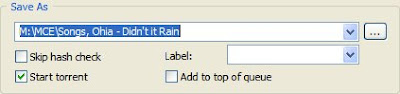
Your BitTorrent client will open and (possibly) ask you where you want to save the file(s). Pick your save location, hit OK, and that's it; your file will begin downloading. If you're not impressed with the speed at first, be patient. It can sometimes take a minute or two before the download ramps up to full speed. If you're still not happy, try searching for another torrent with more seeders.


That's it?

Yep, that's it. That, in a nutshell, is how to download files using BitTorrent. There can be more to it, of course, if you want to dive in a bit deeper. For example, you can run through the Speed Guide in uTorrent to improve your download speeds (the guide is fairly self explanatory—just go to Options -> Speed Guide to get started), download select files from the torrent rather than every file, throttle your bandwidth, and so on, but this basic guide should get you started.

Also, to ensure you stay in good standing in the BitTorrent community (and aren't labeled a leecher), you should always try to upload as much as you download. Most BitTorrent clients keep track of your upload/download ratio, and you should generally continue sharing a file until your ratio reaches 1, after which you can feel free to remove it from your client (the file will remain on your computer—you just stop sharing it).


Source
:
http://lifehacker.com

Wednesday, August 8, 2007

'Freelancers Toolbox' - 30+ Online Freelance Resources


For Freelance Photographers


iStockPhoto - the leading stock photos site.
Fotolia - a “web 2.0″ version of iStockPhoto.
PhotoStock Plus - Sell your photos worldwide to a large variety of clients.
eXpress Digital - Set up your own online store front for selling your photography.
SmugMug - Take pictures, set your prices and earn a profit selling from your own virtual gallery.
ImageKind - Setup a free online gallery and sell your art online as framed prints.
Shutterstock - Submit your photos and get paid a commission every time they are downloaded.
ImageCatalog - Earn a forty percent commission when someone downloads your photos.
Big Stock Photo - Submit your images for review and if approved you will get paid for others downloading them.
StockXpert - Earn fifty percent commission for selling your stock digital photos through their website.

For Freelance Writers


Blue Mountain Arts - Pays you up to $300 dollars for accepting and publishing your poetry in their greeting cards.
WritingCareer.com - Hundreds of freelance writing jobs plus articles and career advice for freelance writers.
PoeWar.com - Small directory of freelance writing jobs and resources for freelancers.
Recycled Paper Greetings - Greeting card manufacturer that hires freelance writers and artists to create their cards.
Helium - Select a topic, write an article and earn a commission from the advertising revenue.
Online Writing Jobs - Fairly extensive, well maintained job directory for freelance writers.
WritersWeekly - Popular freelance writing ezine. Great for finding jobs, news and resources in the freelance market.

For Freelance Programmers

RentACoder - Locate and bid on open ticket coding jobs and get paid when you fulfill their request. Check for Comments abt RentACoder at the end of this page.
DesignQuote - Free job search for freelance programmers and web designers.
ScriptLance - Hundreds of new programmer projects listed daily. Place your bids on open projects and pick up some side work.
iFreelance - Many available opportunities for programmers, web designers and graphic artists.
Heritage Web Solutions - Hosting company that hires freelance designers and programmers to build their customers sites. Must submit your portfolio for consideration.
Freelance Auction - Freelance web designers can place bids on proposals. Requires you pay them a commission from your earnings if you get the job.


Misc. Freelance Job Resources


Elance - Freelance job search database covering positions in writing, website development, graphics art and more.
Go Freelance - An extensive database of freelance positions. This is a paid service.
Guru.com - Very large free online marketplace for freelancers. Many freelance job types available.
GetAFreelancer - Huge selection of freelance jobs for programmers, web designers, graphic artists, writers, photographers and many more.
Craigslist - The internet classified giant has listings for freelancers too.
Freelance Portfolios - Free service that allows you to create a virtual portfolio highlighting your expertise as a freelancer.
SoloGig - Nice directory with everything listed from senior software developers to at home wine tasters. Worth taking a look.
FreelanceJobs.org - Freelance directory for web designers, adminstrative, sales, writing, translations and more.
Project4Hire - Ton of different job categories for freelancers. Bid on proposals and make some money.

100 Websites You Should Know and Use

100 Websites You Should Know and Use
The Web is constantly turning out new and extraordinary services many of us are unfamiliar with. During TED University at this spring's TED2007 in Monterey, Julius Wiedemann, editor in charge at Taschen GmbH, offered an ultra-fast-moving ride through sites in many different areas, from art, design and illustration, to daily news, blogs and curiosity. Now, by popular demand, here's his list of 100 websites you should know and use >>


CURIOSITY & KNOWLEDGE


GRAPHICS, MUSIC & ARTS


E-COMMERCE EXPERIENCE


SEARCHING & FINDING
msdewey.com [Requires Flash]


ONLINE RESOURCES


TOP INTERACTIVE EXPERIENCE CREATORS

Monday, August 6, 2007

Tips on Job Application

.:: Tips on Job Application ::.
A job application represents your first and possibly only opportunity to impress an employer into wanting to hire you. An application can make or break your chances of success with landing a job, so in this article, we'll let you in on some tips that can help make your job application stick out amongst the stack.
When you first go in to apply, be sure to be polite to the receptionist or whatever person you encounter that is getting you the application. Bosses sometimes ask these people their initial impressions of the applicant, and if you are polite and kind, you may stick out amongst the rest.
You should use a pen with blue or black ink when filling out an application. Pens are more formal then pencils, and any other color ink will be distracting to the person perusing your application. If you're unsure of your ability to fill the application out properly the first time, you may want to bring an erasable pen.
Another factor that employers often use when testing applicants is to see how exactly how prepared of a person the applicant is. Be sure to bring a pen with you when you are applying; asking the receptionist for a pen is seen as bad form by many bosses.
Be sure to bring with you a quick fact sheet based on your personal information that may come into play on the application. Be sure to have references, past job experience, and other notable application information with you so that you don't have to leave to find out the address or phone number of a former employer.
Be sure not to leave any blanks on the application. If there is a box that doesn't apply to you, don't leave it empty; employers may think that you just missed it. Write ‘Not Applicable' in the By Jonathon Hardcastle.
If you have noticeable periods of unemployment between jobs in your job history, be sure to note on the application exactly what the cause of your lack of work was, such as saying that you were going to school for a period of time.
These quick hints can make the difference between whether or not you are chosen for your desired position. By being prepared and confident while undergoing the application process, you may seem of high stature to your future employer, furthering your chances at getting the job. Best of luck!
Jonathon Hardcastle writes articles on many topics including Employment, Family, and Education.

Online BackUp Storage


Mozy is a very good online Data BackUp service around. The good thing about it is that you don't notice that it is there, it backs up your files without interrupting your work and in case of a disaster (lets hope this won't happen), you can easily restore your files. It's free, 2GB automated backup of all your photos, music, videos and documents.
You can schedule daily or weekly backups or you can let the automatic backup happen.
If you decide to sign up then use my referral code BM8H98 and we BOTH get an extra 256MB free. if you want the link.


https://mozy.com/?ref=BM8H98

* Use the above link to SignUp on Mozy.Com you can have more than 2GB.

Certifications Exams

Preparing for any Microsoft certification exams? Click the link below for any kind of help for certification exams.... Free online exams for GRE, TOFEL, CCNA, MCSE, MCSD, NOVELL, MICROSOFT and many more at


Microsoft Certification Exams
http://www.testsworld.com/microsoft/


Cisco Certification Exams
http://www.testsworld.com/cisco/


IBM Certification Exams
http://www.testsworld.com/ibm/default.asp


Oracle Certification Exams
http://www.testsworld.com/oracle/default.asp


Sun Certification Exams

http://www.testsworld.com/sun/default.asp


Novell Certification Exams
http://www.testsworld.com/novell/default.asp


PMI Certification Exams
http://www.testsworld.com/pmi/default.asp


Sybase Certification Exam
http://www.testsworld.com/sybase/default.asp


Red Hat Linux Certification Exam
http://www.testsworld.com/redhat/default.asp


Check Point Certification Exam
http://www.testsworld.com/checkpoint/default.asp


Certified Internet Webmaster Certification Exam http://www.testsworld.com/ciw/default.asp

Friday, August 3, 2007

BLACK HAT - Researchers: Web apps over Wi-Fi puts data at risk

Web apps over Wi-Fi puts data at risk
Users who access Google's Gmail or the Facebook social-networking site over Wi-Fi could put their accounts at risk of being hijacked, according to research from Errata Security Inc., a computer security company.

It's not just those sites but any rich Web applications that exchange account information with users, including blogging sites such as Blogspot or even software-as-a-service offerings such as Salesforce.com, that could pose a risk for users, wrote Errata's Robert Graham, CEO, and David Maynor, chief technology officer, in a paper.

Most Web sites use encryption when passwords are entered, but because of the expense, the rest of the information exchanged between a browser and a Web site is not encrypted, they wrote in a paper presented at the Black Hat 2007 security conference in Las Vegas this week.
Using a packet sniffer, which can pick up data transferred between a wireless router and a computer, it's possible to collect cookie information while a user is accessing one of those sites over Wi-Fi.


Cookies consist of bits of data sent to a browser by a Web site to remember certain information about users, such as when they last logged in. Included in the cookie can be a "session identifier," which is another bit of unique information generated when people log into their accounts.
By collecting cookie information and the session identifier with the packer sniffer and importing it into another Web browser, the hacker can get inside a person's account. The attacker may not, however, be able to change a person's password, since many Web 2.0 applications require a second log-in to change account information.


Nonetheless, it could allow a hacker to create blog postings, read e-mail or do other malicious activity. Meanwhile, the victim is directed to a version of the Web page they intended to visit, which Errata calls "sidejacking."

There is a remedy, however. "The consequence of this is that users should never use a Wi-Fi hot spot unless they are using VPM (virtual private networking) or SSL (secure sockets layer) to access their accounts," they wrote.

Download PDF2Word v3.0

Download PDF2Word v3.0
Moved To:

Autodesk Maya v8.5 [64&32 Bit]

Autodesk Maya v8.5

Link Moved to:

WinRAR v3.70 Final + Vista Theme

WinRAR v3.70 Final + Vista Theme


Topic Moved To:

Get Data Back - NTFS & FAT32

Get Data Back - NTFS & FAT32


Link Moved To:

Mcafee Total Protection 2007 & McAfee Internet Security Suite 2007


Mcafee Total Protection 2007


Moved To:


McAfee Internet Security Suite 2007

Moved To:

http://3downloads.blogspot.com/2007/08/mcafee-internet-security-suite-2007.html

BitTorrent Clients, Trackers and Downloads

All About BitTorrent Clients, Trackers and Downloads

In just a few short years, the peer-to-peer (P2P) file sharing protocol BitTorrent has become one of the most popular methods of file sharing on the Internet. With an ever growing amount of legal content available via "Torrents," Downloading BitTorrents has a very bright future.

What makes BitTorrent different than other P2P networks is its extremely efficient distribution method. Unlike other file sharing networks where downloads slow as more and more users download the files, downloads will get faster the more users that are online, downloading and sharing the files. The BitTorrent protocol is currently the amongst the fastest at moving very large files across the Internet.

In order to begin, the first thing you need to track down is a piece of software to act as the BitTorrent Client. Some users recommend uTorrent because of its small size and limited system resource usage. Others prefer the torrent clients, Azureus and BitComet. I recommend you download a couple of different clients and use the one you feel most comfortable with.

BitTorrent clients are easy to install as any other software and very small. Once installed you are just about ready to begin downloading. To find files to download, goto any search engine and search for "Torrent Tracker" or "BitTorrent Tracker."


In order to download a file using BitTorrent, another user must be uploading (also called "seeding" the file with their own torrent client. Choose the file to download, click the link to the .torrent file on the tracker page. This will trigger your installed client to open begin downloading to your computer. The more seeders the file has the faster the download will go. There is a very good chance that others downloading the torrent will be able to see your ip address so be sure to only use BitTorrent for its intended legal purpose.

Another unique aspect is the possibly for the seeder to force others to seed and share. In order to keep BitTorrents working properly everyone must share something. The protocol depends on it. If you share with other users while downloading, your download speeds will increase as you are helping the other users to download.

25 + Common Website Design Mistakes to Avoid

25 + Common Website Design Mistakes to Avoid

I'm sure you've seen examples of great websites on the internet - and also examples of really "Bad" websites. First impressions are extremely important - you have about 20 seconds to make that first impression a good one. If you want your visitor to come back you've got to do a lot to impress them in an extremely short period of time.

Many individuals or small business owners often opt to design and build their own websites. Without proper experience or website design background many mistakes are made. If you are a beginner then there are several things you should keep in mind to avoid before designing your website.

Here are several common mistakes which should be avoided when designing your new website.

1. Slow Loading Pages

Problem: Have you ever gone to a website and waited and waited for it to load?

Solution: Optimize your images at a lower resolution to achieve faster loading pages. Keep your page sizes well under 60 KB.

2. Page Layout

Problem: Websites that have the navigation in different places throughout the site. It looks cluttered and unprofessional.

Solution: Be consistent and be organized in your websites layout. Make sure all your web pages look the same and the websites navigation is in the same location on each page.

3. Wild and Crazy Color Schemes

Problem: Have you ever visited a website that has a background with a bright, neon color and can't read the content because the colors are so loud? What's the point?

Solution: Think "easy to read." Avoid dark backgrounds with light colored fonts. White background with black text is best for the general public.

4. Spelling and Grammar Errors

Problem: Spelling and grammar errors just jump off the page.

Solution: Always spell check.

5. Text on the Page

Problem: Most internet users don't read web pages - they scan them.

Solution: Make sure your page is easy to read. Break text into manageable pieces, use sub-headings, short paragraphs, highlighted keywords and bullet points.

6. Font Styles and Sizes

Problem: Serif fonts such as Times New Roman are more difficult to read on a computer monitor. Also, text that is too small or way too big are hard to read.

Solution: Use non-serif fonts such as Arial, Verdana or MS Sans Serif for web pages that will be read online. Your page will look much better, more professional, and will be much easier for your visitor to read.

7. Not Enough "White Space"

Problem: Too many words on a web page can be overwhelming.

Solution: Make your page easy to read by breaking the text into smaller, more manageable pieces. Also, use sub-headings and bullet points.

8. Cheesy Music that the User Cannot Control

Problem: Background music on a site that does not fit. Next, not being able to shut it off.

Solution: If you think you need to use music on your website for some reason, then make sure you offer your visitors the option to turn it off, or on, quickly and easily.

9. Poor Layout and Design

Problem: Have you ever been to a website that is simply just "too much"? It's like they are trying to fill every available pixel of space on the entire page.

Solution: Don't overdo it when designing your pages. Just because you can add something doesn't mean you have to. Leave plenty of white space between your text and images.

10. Overly Long Pages

Problem: Ever been to a website with a page that just scrolls down forever?

Solution: Most people will never scan down to the bottom of really long pages. It's better to have several short pages vs. a few really long pages.

11. Non-Standard Links

Problem: You go to a website and aren't sure which words are really links because the link colors have been changed.

Solution: Don't confuse your users. Keep the link colors as they are.

12. Under Construction signs

Problem: Have you ever been to a website and found a page with no content of any type but a big "Under Construction" sign instead?

Solution: Don't use "Under Construction" signs on your website.

13. Didn't Test Your Web Site

Problem: Ever been to a website that just looks like a mess? Maybe you saw text overlapping images, weird alignment, etc.

Solution: Always check to see what your site looks like in multiple browsers and change accordingly before uploading your site to the web.

14. Unclear Navigation

Problem: You don't enjoy broken links, error pages or too many moving objects - neither do your websites visitors. If navigation is too difficult to follow, visitors won't return.

Solution: Make sure that your navigation is easy to read, find and to follow. Also, make sure that it is in the same spot on all of your websites pages.

15. Sloppy Web Site Copy

Problem: Have you ever visited a website with missing words, bad grammar, or it just didn't make sense?

Solution: Always remember, "Content is King" on the internet, so make sure there is plenty of good, focused information for your visitors.

16. Never Updating Your Site

Problem: Ever go to a website that hasn't been changed at all over the last few times that you've visited it?

Solution: You should always update the content on your site frequently.

17. Too Many Clicks

Problem: Have you ever gone to a website, found something you're interested in checking out, and then had to click, click, click before you found the item you were looking for (if you didn't give up first)?

Solution: Don't test the patience of your visitors. Make sure that everything can be found on your site within 3 clicks or less.

18. No Privacy Policy

Problem: No Privacy Policy page is listed on a website.

Solution: Post a Privacy Policy on your website. Make sure that your customers know that you will not share their addresses with anyone.

19. No Company Contact Information

Problem: A company with no address or contact information is not one you necessarily want to give your money to.

Solution: Email addresses or phone numbers are most often seen as contact information on websites, however, having a physical mailing address on your web site adds another key credibility factor.

20. Using Free Web Hosting

Problem: You visit a web page that has a name so long you'll never remember it because it is from one of those free website hosts.

Solution: If you want your internet business to be taken seriously avoid using free web hosting. This all adds to the issue of credibility.

21. Using Free E-mail Addresses

Problem: You visit a website and try to send an email to them, however the email addresses are not associated with the domain name.

Solution: Using a free email address, such as Hotmail, Yahoo or Gmail, is never appropriate for your website. On your website, always use an email addresses associated with your own business domain name.

22. Advertisements

Problem: You've come to a website where the pages are cluttered with a lot of different advertisements.

Solution: A lot of people are using advertisements to earn extra money. That's fine, just don't overdo it.

23. Bad Images

Problem: How many times have you seen a web page with missing graphics files or misshaped images?

Solution: Always optimize your images and use the height and width attributes of the image tag. Additionally, save the files in the right image formats: JPG for Photographs and GIF for artwork.

24. This Website Best Viewed on .....

Problem: This is often seen on many beginner websites.

Solution: Simply don't use this on your website.

25. No Prices

Problem: Websites that don't have product prices listed clearly.

Solution: If you're selling a product on your website, ALWAYS include a price with the item description.

And here's a list of things that you should just avoid, or should not forget, simply because it's the right thing to do, website design-wise. And here they are:

Frames, Hit counters, Orphan pages, Anything "Cutesy", Pop ups, Fancy Fonts, Don't overuse Flash, Avoid Javascript links, Blinking text , Animated GIFs, Missing Meta Tags, Horizontal (sideways) Scrolling, Don't underline or color normal text, Don't forget functional links on your footer, Don't forget about your Marketing Strategies, Don't forget to include anchor text on your links, Never subscribe a visitor for anything without his consent, Don't leave the home page title as "Welcome to Mysite.com", Avoid using all the "Bells And Whistles" simply because you can, Not Taking Advantage of SEO (Search Engine Optimization) on your website.

Whether you have created your own website or are working with someone else on creating your website, I hope all these ideas above will help you build a better website that steadily attracts visitors. If you've never built a website on your own, I hope the tips above help you design the best site that you can and help you to avoid all these issues in the future. Knowledge is critical.

Making the Move From Html 4 to Xhtml and CSS

Making the Move From Html 4 to Xhtml and CSS
The first important difference in xHTML comes in the form of its syntax. The language is case sensitive, so it is all written in lowercase, no more use of caps! Secondly, ‘tags’, or elements to be technical, are now classified into two types: those that 'contain' data, and those that are 'empty'. An example of the former might be a paragraph element, which has a closing tag. That which is in between these two tags is the 'contained data'. For instance, a sentence is understood to be data. An example of an empty tag could be a line break, and is written slightly differently than in HTML 4.0, instead of having a forward-slash just after the opening bracket the forward-slash must be written just before the closing bracket and must be preceded by a space. Other 'empty' types include the image element and the horizontal rule element . Another point to bear in mind is that because xHTML is supposed to be compatible across various devices, all images must have alternative descriptions (which means you have to make use of the 'alt' attribute in image elements, it’s no longer just an option). Similarly, you'll be making extensive use of the 'id' attribute in xHTML (similar to the 'name' attribute, but used differently - see below).The biggest hurdle for myself personally was learning the syntax of CSS. There are actually three ways of using CSS, of which one is to create a separate document with a .css extension. This file will contain all the styling attributes of the elements in your xHTML code. You can also place CSS in the ‘head’ element (using 'style' as an element), or you can embed it into an element anywhere in your code (for this you would use the ‘style’ attribute). Using an external file can be useful as changes made to this one document cascade throughout your entire website, hence eliminating the need to change the code on each page. The syntax basically consists of a 'selector', which can either be an 'id' selector, a class selector or a generic class selector . So, for instance, I've given an ‘img’ element the id "MyImg", then I go to my css section/file and create the selector #MyImg {}. Here's where the syntax comes in. the # symbol means that I've created an id selector, so what follows in the curly brackets will apply to all elements with the id "MyImg". An example might look something like this:
#MyImg {
width: 200px;
height: 100px;
border: 0px
}
Notice that I use a colon in place of the equals sign to assign values. If you fail to do this your styles will not be applied. Also, each attribute is followed by a semicolon which separates them. If you do not follow this syntax when using CSS your styling will not come into effect. The last thing you need to know to get started is how to link your external CSS document to your xHTML document. Just nest a element in your 'head' element and you're ready to go. There are plenty of new ways to perform tasks such as positioning in CSS. Have fun playing around with these new possibilities!

Wednesday, August 1, 2007

Basic steps for creating a good website

Basic steps for creating a good website
The first point you should consider is understanding what information your website should contain. In most cases your website should have at least the following basic structure:

Home page

An introduction to your business, services and / or products About page - An overview of your business, future vision Services / Product page - An overview of your services / products Contact page - Provide all your business contact information, address, email, telephone, fax
There are many other web pages which you can add to your website but these pages will be determined by the type of business you own. Below are examples of other pages you may require for your website:

Resource Page

A resource page can be used to structure information in to categories, this information can then be downloaded by website users. You can also charge a fee for users which want to obtain this information. In most cases free download information is a very useful method of driving web traffic to your website. The resources can be in different formats such as a word document, pdf document, video clip, audio clip, graphic file, power point presentation, there are many formats which can be used to deliver information to your website users. Informative download information is a great way to advertise your business, especially if the information your provide is free, this is also know as viral marketing.

Image gallery page

An image gallery page is a good way to visually present your business, for example if you are a property developer you may want to show before and after images of a property development or if your are a photographer you may want to compile a gallery of images in to categories which would provide a good method of demonstrating your work.

Payment processing page

A basic payment processing page can be a useful mechanism for accepting payments from your clients. More advanced payment processing is know as ecommerce. There are many payment processing providers such as PayPal or Google checkout. In most cases these payment processing providers will only charge a fee if a payment is made. Most banking payment processing has a monthly fee so you should consider and research which is the most cost effective for your business.

The above pages listed are only a few example of how you can create more interacting on your website. A good way to find out what else you can achieve is to simply look at what your competitors are doing.

Listed below are some of the most common requirements for an effective website:

Meta Tag Data

Meta tag data is used by search engines to find and correctly catalog your website. It is very important that the meta tag data you add to your website is relevant to your business. There are three main types of meta tag data:

Title Tag

The title tag is important for website design search engine optimisation. The title tag is used to form a part of a search engine result. It is important to keep your title tag short but also try to list the most common keywords in your web page title tag. Each web page on your website can contain a different title tag.

Keyword Tag

The keyword tag contains words or phrases that potential visitors will use in search engines to find your business website. The main text on your website should also contain these keywords. Each page on your website should focus on a specific keyword and the text information on this page should reflect against this chosen keyword.

Description Tag

The description tag is normally placed under your title tag and should contain a short description about your business. This is an opportunity for you to sell your products and services to your potential clients. Search engines use the description tag to form a basic description of your business in search results. It is advisable to keep your description tag short and straight to the point. Get your message about your business within the first two lines of description text.

Fonts

Keep your fonts (text type) simple. I would recommend Verdana or Arial font types. These fonts are easy and clear to read. Avoid fancy fonts which are difficult to read as this will only distract a user from the key information you are emphasising.

Colours

Use high contrast colour combinations on your website, for example if your background is a light colour use a dark colour for the text. I would recommend an off white colour for the background and a dark grey (all most black) colour for the text.

Compress your images

When adding images to your website it is advisable to compress the images using a graphic application. Your images should be set to 72dpi (dots per inch) for displaying on a computer monitor, high resolutions on a website pages will not affect the quality of the image being displayed. You should save your images using , .jpg or .gif format which are the most common format used when adding images to your website. .jpg images are suitable for complex images and .gif are suitable for simple banner of title images.

Designing your website template

In most cases it is advisable to design your website for 15" monitor which use an 800 x 600 screen resolution. Although you may have a large screen monitor, many of your website visitors may have a smaller screen size, by creating a website based on a smaller resolution you will be giving all your website users access to a website which can be viewed on any monitor size. In some cases you may require more space for your website so I higher resolution design will be required, this is OK but you should always consider the end user (website visitor) before making this decision. It is also possible to create a website which dynamically changes size based on the monitor size of the user but you normally loose a lot of control over the content layout when creating such a solution.

The above comments are only the basic considerations you should make before developing a website. Below I have listed some informative websites where you can obtain more information. A good web development company will provide free consultancy at the initial stages of developing your website.

http://www.w3schools.com/html/default.asp

http://www.htmlgoodies.com/primers/html/

http://www.htmlcodetutorial.com/

You can find many other website development resources by simply visiting your favorite search engine and typing in "website development help".

Cell Phones Product Guide